Getting Started & Main UI Tour
Run and watch your agent teams from anywhere.
Coral Hub gives you a single browser dashboard at app.coralhub.dev to watch, guide, and collaborate with your agent teams across all your computers — your laptop, a dedicated build desktop, or remote cloud instances — without juggling SSH sessions, VPNs, or terminal windows.
Follow Teams Live
See what each agent is thinking, what tools and commands they execute, and review changed file diffs in real time.
Guide & Collaborate
Jump into live chats, answer prompts, manage tasks and boards, or open terminals to unblock work with zero friction.
Unified Control
Connect multiple machines to one dashboard while keeping full authority and control on your local hardware.
Quick Start: Up and Running in 3 Steps
app.coralhub.dev: Open the dashboard in your browser. Choose Email me a sign-in link, Sign in with GitHub or Continue with Google. Coral Hub is in closed beta, so an account can only be created for an address that has been invited. Your sign-in methods, signing out everywhere and closing your account are on the Account page.
The Servers Dashboard
The primary view in Coral Hub is the Servers tab, which lists all your connected computers at a glance. To open it, choose Servers in the top navigation of your dashboard:
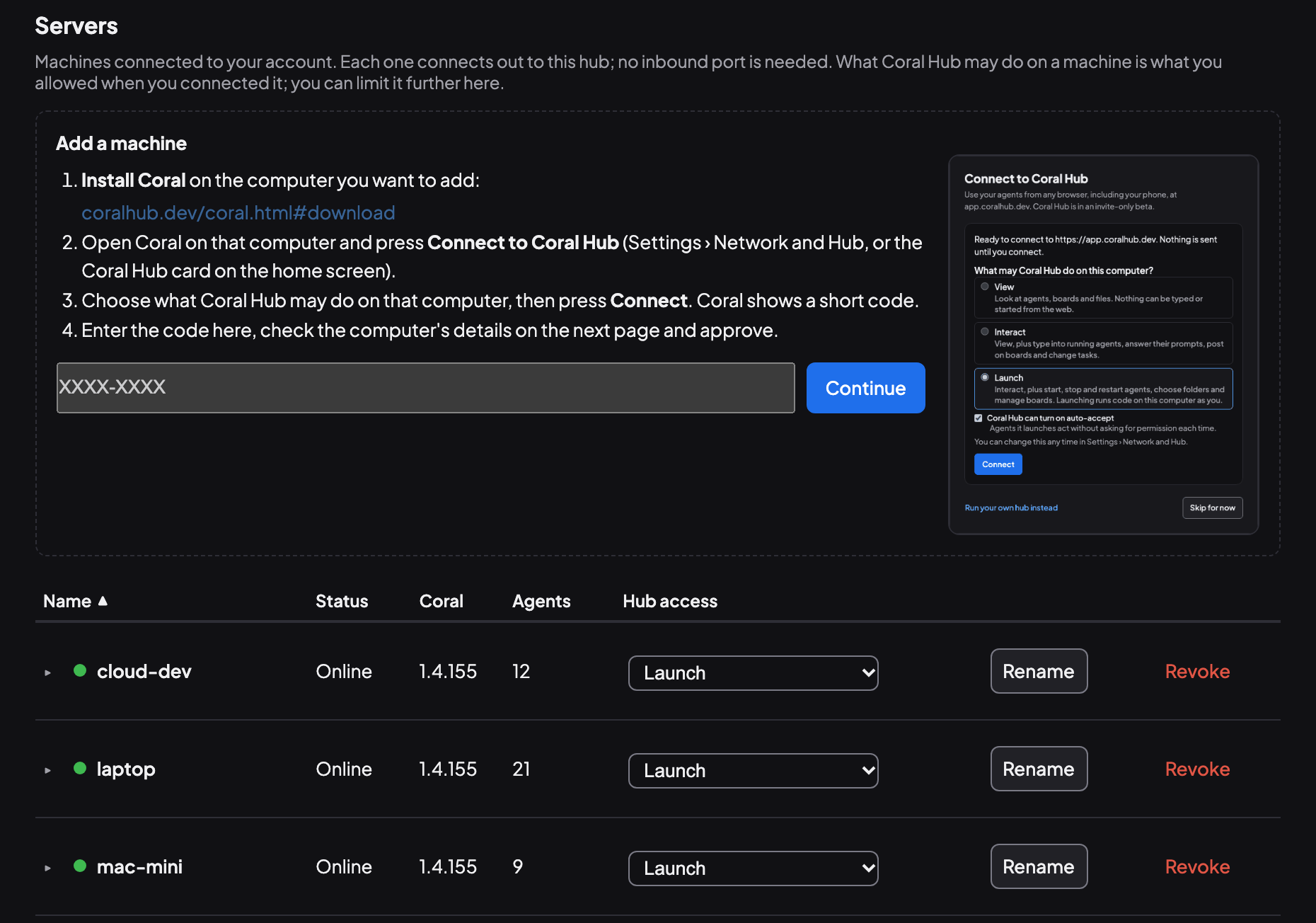
Each computer’s row in the Servers table shows:
- Machine name: A custom label you assign (such as
office-macbookorbuild-box). You can rename a machine at any time. - Connection Status: Shows whether the computer is connected or offline.
- Active Agents: Overview of agents currently running on that computer.
- Hub access: The remote permission level governing what actions can be taken through the hub. Choose View, Interact or Launch in the computer’s row; a choice above what that computer allows cannot be selected.
Access Modes & Local Control
You choose the remote permission level for each machine in Coral Hub:
| Mode | What Coral Hub Can Do on That Machine |
|---|---|
| View | Read-only: read chats, terminals, files, comments on artifacts, tasks and boards. Nothing can be typed, run or changed. |
| Interact | Also type into running agents (send text and keys, answer prompts), post on boards, change tasks and notes, rename or archive agents, and change a team's working mode. Agents can run commands, so this can make the machine run code. |
| Launch | Also start new agents and teams, wake, restart, stop and sleep agents (one agent or a whole team), change an agent's model, run tasks and workflows, browse and pin the machine's folders, write and upload files, pause boards, delete board messages and whole boards, and turn on auto-accept. |
Cross-team messaging: the settings that let agents on different boards of one computer pass messages to each other can be changed only on that computer, never through Coral Hub, whatever access mode you choose. Messages between teams on different computers go along team links that you create in Coral Hub.
This table shows what Coral Hub allows; last checked 2026-10-20. Access rules can change between Coral releases, and the Servers tab on your hub shows the wording for the version you run.
Your access to a machine never exceeds what that machine allows. A machine tells the hub, each time it connects, the most its own settings allow; until it has connected you have View. The hub’s own setting defaults to the top and can only lower it.
Operator Posting: Anyone signed in to your hub account can post and act as the Operator on that computer at Interact or Launch; posts and actions are labelled with their Hub identity and recorded on that computer for the owner to review; you can turn this off in Coral Settings on that computer.
Settings → Network and Hub, the question “What may Coral Hub do on this computer?”; in older Coral versions, Settings → Coral Hub). Coral Hub can never raise access above what the computer's owner configured locally.
Auto-Accept Note: Auto-accept is an operator-gated preview feature. When enabled, turning auto-accept on requires Launch mode in Coral Hub and local owner opt-in in Coral Settings.
Revoking Access vs. Disconnecting
When you want to stop managing a computer through Coral Hub:
- Revoke on Coral Hub: Clicking Revoke next to a machine in the dashboard drops the connection and invalidates the machine's authentication token on the hub. Reconnecting requires a fresh pairing flow.
- Disconnect locally: Clicking Disconnect in Coral's local settings forgets the stored token on that computer. To permanently invalidate access from the cloud, Revoke it on Coral Hub.
Offline Resilience
Coral runs locally first. If network connectivity drops or the hub is temporarily unreachable, your Coral desktop app and agent sessions continue running uninterrupted. When connectivity returns, Coral automatically reconnects without manual intervention.
Privacy & Control
Connections are relayed through Coral Hub. The hub can read content while it passes through. View mode is read-only; revoke access from the Hub to stop the connection. See Coral Hub Privacy for details.
Find work that needs you
Open Needs you for five lists across your own machines: Waiting for you, Tasks for you, Stuck, Errors and Parked. Tasks for you includes tasks assigned to the Operator and tasks awaiting review. Open the linked agent or board to respond; this page has no answer buttons. Offline machines and read failures can leave the list incomplete.
Google sign-in is available alongside GitHub and email links. You can add Google to an existing account using Link Google on your Account page when the button is offered.
Saved for later
Use Saved to find messages you bookmarked across your machines. Open an item to return to its agent or board, then use Saved there to reach the message. The Hub list is read-only.
Beta access and team features
Coral Hub is in closed beta. Sign-up is limited to approved addresses. Request beta access for yourself or a team.
Hub teams group people and roles; they are separate from the agent teams running on your machines. Team features are coming to the hosted beta: members, roles, invitations and team administration. Company sign-in (SSO) is coming too. Team membership does not give coworkers access to your machines or agent workspaces. View sharing is coming and is not enabled in production.
How remote access works
Coral Hub hosts the dashboard; your agents run on your own machines. Those machines need to be running and connected for remote access. If Coral Hub is unavailable, local Coral keeps working. Use a current Coral release on every machine you connect.
Connections are relayed through Coral Hub. The hub can read content while it passes through; the connections are not end-to-end encrypted. See Coral Hub Privacy.
Running your own hub is the self-hosted option: you run and manage the dashboard yourself. Keep it on a trusted network, a VPN or tailnet, or use an encrypted tunnel. Follow the self-hosting guide.
Working in Coral on your machine
Coral agent teams use a shared message board and can run in isolated git worktrees. Tasks can declare dependencies, required outcomes and artifacts; an orchestrator can hold work for review. Sleep and wake preserve prompts, board subscriptions and session state.
Cost tracking can show token and cost figures by agent, session, team, branch and task using an optional local LLM proxy. Scheduled jobs can run a prompt or workflow on a cron schedule in their own git worktree, with shell and agent steps and OAuth token injection. See the Coral documentation for setup and supported workflows.
More guides
See also: What’s new in Coral Hub, Support, Coral won’t start an agent: first-run fixes.